work / gain stage
gain stage
Gain staging for Ableton Live. It moves every fader by the same number of dB so the master peaks at your target, −6 dB by default, and the balance stays the same.
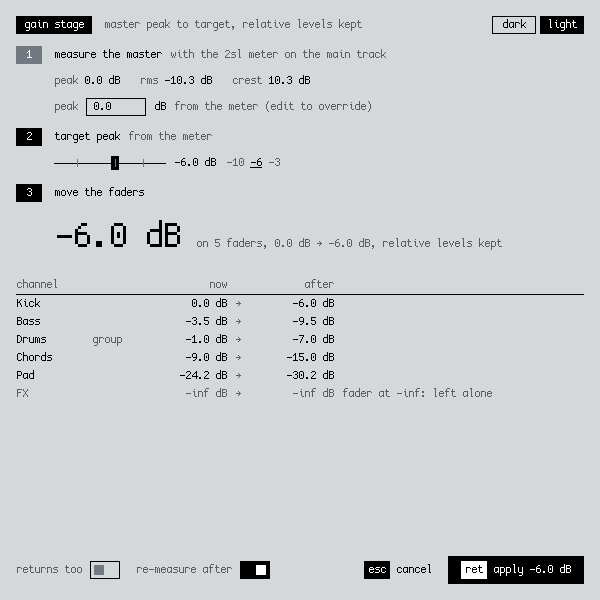
what it does
If your mix peaks at 0 dB, the limiter on the master is already working before you've started mastering. The fix is to pull every fader down by the same amount. Live's faders aren't linear though, so doing it by hand is slow and easy to get a bit wrong.
- Put the 2sl meter first on the main track, set a target (−6 dB by default), hit measure and play the loudest part.
- Right-click any track → Gain Stage Mix…. You'll see what the meter heard and every fader's before and after.
- Hit apply. Every fader moves by the same amount in one undo, and the meter re-arms so you can check it.
It moves ungrouped tracks and groups. Tracks inside a group follow their group fader. Returns stay put unless you turn them on, which you'd want for pre-fader sends. Faders at −inf stay there, and anything that would go past +6 dB or below −69.6 dB stops at the limit.
the meter
Extensions can't read audio levels, so there's a small Max for Live meter for that. Put it first on the main track so it hears the mix before any limiting. It measures peak and RMS over a few seconds, and the extension reads the result. No meter? You can type the peak in.
install
- Download both files above, the extension (.ablx) and the meter (.zip).
- In Live, open Settings → Extensions and drop the .ablx on the page.
- Unzip the meter, keep 2sl-meter.amxd and 2sl-meter.js in the same folder, and drag the .amxd first onto the main track.
Needs Live 12 Suite 12.4.5 or later with Extensions, which is in the Live beta for now.
Menu item missing? Turn off Developer Mode in Settings → Extensions. While it's on, installed extensions don't show up in menus.
the fader curve
Extensions see a fader as a number from 0 to 1, and Live doesn't say how that maps to dB, so we measured it. A Max for Live device stepped through every value in 0.0005 steps and read what Live displayed (the data). Above 0.4 it's a straight line, dB = (value − 0.85) × 40, so 0.85 is 0 dB and 0.7 is −6 dB. Below 0.4 (−18 dB) it curves down to about −70 dB and doesn't fit a simple formula, so we use the measured table there. Conversions land within 0.006 dB of Live's own display.
| fader value | dB shown |
|---|---|
| 1.0 | +6.0 dB |
| 0.85 | 0.0 dB |
| 0.7 | −6.0 dB |
| 0.4 | −18.0 dB |
| 0.3 | −24.2 dB |
| 0.1 | −48.6 dB |
| 0.02 | −63.4 dB |
| 0 | −inf |
how it's built
TypeScript on Ableton's Extensions SDK. The fader math is unit tested against all 1,887 measured points. The meter is Max for Live with a bit of JavaScript, and the dialog uses 2sl-ui, the same design system as this site.
We take commissions like this. The first 30 minutes are free: book a consultation or get in touch.
next projectpress